
Create a Claim Page
A claim page is a link you send to people so they can pick their gift and choose a size. You build it in 5 steps, then publish it and share the link.
Before you start
- The products you want to give must already be in your Dashboard. Check Products, then My Products.
- You need access to the Claim Pages page.
- 1
Start a new claim page
In the sidebar, open Commerce and click Claim Page. Then click + Claim Page at the top right.
Acme Co.
Marketing
Search...HomeProductsCommerceClaim PageMerch StoreCollectionsDiscountsOrdersApprovalsContactsOperationsCompanyFinancesWhat's NewHelpSettingsClaim Pages
Claim Page1Holiday Gifts 2026- Status
- Published
- Access
- Public
- Type
- Multi-Select
+ Claim Page starts a new draft A draft called "Untitled claim page" opens. It already has your Dashboard's logo, colors, and font. Every change saves on its own.
To change words, you can also click them in the preview on the right and type there. The page name, buttons, headlines, and messages all work this way. The matching field on the left lights up.
- 2
Appearance: name and style the page
Give the page a Page name. This is the only required field here. You can also add a subtitle, change the button label, and pick a logo, hero image, font, and colors. The right side shows a live preview.
What people get sets the word the page uses: Claim, Gift, Welcome Kit, Order, or your own. Pick Gift and the order page says "Gift submitted" and the email says "Your gift is confirmed."
- 1Appearance
- 2Products
- 3Ordering
- 4Confirmation
- 5Access
Page nameQ4 Holiday Gift2SubtitlePick your favoriteSubmit button labelClaim ProductFont familyDM SansStep 1 of 5. The page name is required. - 3
Products: pick what people can claim
Click Add Products. Check the products or bundles to offer, then click Add.
Add components
Search products and bundles…Quarter-Zip PulloverUnisex TeeInsulated BottleCancelAdd (2)3Pick products from your Dashboard Each product shows its sizes. Uncheck any size you don't want to offer. At least one size has to stay checked.
With 2 or more products, choose Same product for everyone or Recipient picks product.
- 4
Ordering: decide how claims work
Set when the page closes, where orders ship, and what happens when stock runs out. Under Delivery, pick Their own address, One address, or Choice of locations.
- Appearance
- Products
- 3Ordering
- 4Confirmation
- 5Access
Delivery
Their own address
They type where it goes
One address
Everything ships to one place
Choice of locations
They pick from your list
Stop accepting claims on a date
Page stays published, shows a closed notice.
Require approval before anything ships
Gives you a chance to edit or cancel orders.
Limit claims per email
Same email can only submit a set number of times
Where orders ship, plus the switches for closing, approval, stock, and limits Setting What it does Delivery Their own address: each person types where it goes. One address: everything ships to one place you pick. Choice of locations: people pick from 2 or more locations you list. Also allow individual shipping With Choice of locations, adds Individual Shipping to their list. Picking it lets them type their own address. Ship together when it closes Each office's claims ship together after the page closes. Only UpMerch staff can change it. See Ship office orders together below. International shipping Accepts addresses outside the US. Off by default. Shows when people can type their own address. Delivery dates When orders arrive, like "December 14 through 19". The page shows "Delivers December 14 through 19" and the email shows the dates under Delivers. Stop accepting claims on a date Closes the page at a date and time you pick. You can show a countdown. Use a fixed email on every claim Hides the email field. Order emails go to the address you enter. Require approval before anything ships Holds each claim until you approve it. See Require Approval on a Claim Page. Continue accepting claims when out of stock Lets people claim a sold-out size. Limit claims per email Caps how many times one email can claim, from 1 to 99. Switching cards keeps your addresses, so you can switch back.
For One address or Choice of locations, click + Address and pick a saved address. On Choice of locations, your picks list under Locations they can pick. Click the pencil to edit one or the X to remove it. Clear all removes them all.
Delivery
Their own address
They type where it goes
One address
Everything ships to one place
Choice of locations
Your list or their own address
Locations they can pick · 2
Clear allLocationAddressAcme Austin100 Congress Ave, Suite 400, Austin, TX 78701Acme Chicago233 S Wacker Dr, Chicago, IL 60606Address4Also allow individual shipping
They can enter any address
International shipping
Accept shipping addresses outside the US.
Choice of locations with 2 locations picked To make a new one, click New Address at the bottom of the list. With no saved addresses yet, + Address opens the form right away. Fill in the Label, your own name for the place, and the address. Add who it goes to: Recipient, Email, and Phone are required, and the Recipient prints on the box. Contact name and Ext. are optional. Leave Save to company addresses on to use it again, and click Add address.
Address
Label *Acme HQ4Recipient *Acme Co.Contact nameJordan LeeEmail *jordan@acme.comPhone *(512) 555-0142Ext.1234Start typing or paste an addressCountry *United StatesStreet address *100 Congress AveApt, suite, floorFloor 12City *AustinState *TexasZIP *78701Save to company addressesCancelAdd addressWho it goes to sits at the top - 5
Confirmation: set up the order page
This step sets up the order page. People land on it right after they claim. The View Order button in their emails opens the same page later.
Set the Headline and Message. They start as "Claim submitted" and "Your order has been placed. You'll receive a confirmation email shortly." The page takes its logo and colors from Appearance. Turn off Use Appearance settings to give it its own.
- Appearance
- Products
- Ordering
- 4Confirmation
- 5Access
ConfirmedShippedDelivered5DesktopMobileHeadline
Claim submitted
Message
Your order has been placed. You'll receive a confirmation email shortly.
Use Appearance settings
Submit another request

Claim submitted
Your order has been placed. You'll receive a confirmation email shortly.
Confirmed
Dec 1
Ships
Delivers
December 14 through 19
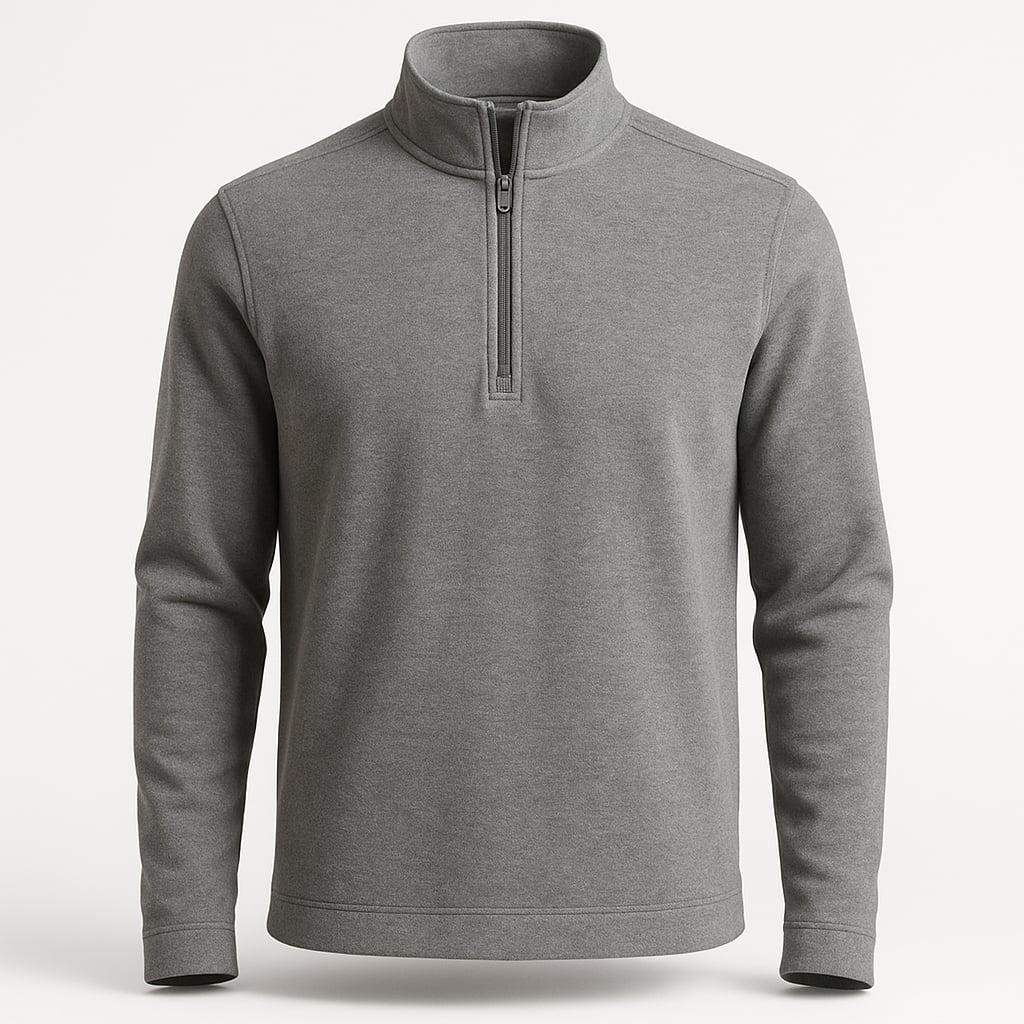
Quarter-Zip Pullover
Navy · Medium
Qty 1
Maya Chen
maya@acme.com
100 Main St
Austin, TX 78701
Order MAR-01042 · Placed December 1, 2026
Powered by UpMerch
Step 4 of 5. The switch previews the page at each stage. Under your words, the page shows:
- A progress line: Confirmed, Ships, and Delivers, with the same dates as the emails.
- The product, with its photo and quantity.
- The person's name, email, and address.
- The order number and the day it was placed.
- "Powered by UpMerch", which links to upmerch.com.
The page changes as the order moves:
Stage What the page shows Waiting on approval Your Headline and Message. The first step says Received, and Ships says "Once approved". Confirmed Your Headline and Message. Shipped "Your order is on the way", the carrier, the tracking number, the latest 3 scans, and a Track Package button. Out for delivery "Your order arrives today". Tracking stays. Delivered "Your order was delivered". All 3 steps are filled in, and tracking is gone. Cancelled "Your order was cancelled". No progress line. To preview a stage, use the switch next to Desktop and Mobile: Confirmed, Shipped, or Delivered. Shipped and Delivered show a sample shipment.
Headline and Message show only until the order ships, so both boxes are grayed out on Shipped and Delivered. The later headlines come from the Emails tab. See Edit Claim Page Emails.
- Appearance
- Products
- Ordering
- 4Confirmation
- 5Access
ConfirmedShippedDelivered5DesktopMobileHeadline
Claim submitted
Message
Your order has been placed. You'll receive a confirmation email shortly.
Use Appearance settings
Submit another request
Your order is on the way
Confirmed
Dec 1
Shipped
Dec 6
Delivers
Dec 9
UPS · Ground
1Z8A4E270312345678
Departed UPS facility
Hodgkins, IL · Dec 6, 8:00 PM
Arrived at UPS facility
Hodgkins, IL · Dec 6, 3:00 PM
Picked up
Chicago, IL · Dec 6, 10:00 AM
Quarter-Zip Pullover
Navy · Medium
Qty 1
Maya Chen
maya@acme.com
100 Main St
Austin, TX 78701
Order MAR-01042 · Placed December 1, 2026
Powered by UpMerch
On Shipped, the page adds tracking and the two boxes are grayed out Turn on Submit another request if one person may claim more than once. The button shows only right after a claim, not when they open the page later.
- 6
Access: choose who can open it and what they see
Access has three tabs. The preview on the right shows the tab you're on.
Tab What you set Who Can Open It Public so anyone with the link can claim, or Private to add a lock. See Lock a Claim Page. Link and Sharing The page's link, plus the title, description, and image a shared link shows in Slack or on social media. Closed Page What people see once the page closes. PublicPrivateStep 5 of 5. Public is the default. A page closes when it passes its close date, or when you unpublish it after it took claims. On Closed Page, set the Headline and Message. The headline starts as "This claim page has expired". The message starts as "Claims closed" and your close date, like "Claims closed November 18, 2026 at 2:00 PM CT." With no close date, it's "Claims are closed." The page takes its logo and colors from Appearance.
The person in Who to contact after it closes on Ordering shows under the message. With a contact and no close date, the message starts empty, so the contact line says it all.
Turn on Show a button to send people somewhere next, like your merch store. Add a Button label and a Button link. A link that can't work gets a red box, and the page hides the button until you fix it.
Who Can Open ItLink and SharingClosed PageHeadlineThis claim page has expiredMessageClaims closed November 18, 2026 at 2:00 PM CT.Show a button
Button labelVisit Our Merch StoreButton linkhttps://shop.acme.comClosed Page. The button is optional. - 7
Publish and share
Click Publish at the top right. If something is missing, you're taken to the step that needs it. Once it's published, the Share claim page window opens. Click Copy next to the link and send it out.
Edit the emails people get
A claim page sends four emails: Confirmation, Shipped, Out for Delivery, and Delivered. Open the claim page and click the Emails tab to change their words, who they're from, and their logo and colors. You can also send yourself a test. The steps are in Edit Claim Page Emails.
Holiday Gifts 2026
PublishedAcme Co. <support@upmerch.com>
Your Acme Co. gift is confirmed
Delivers December 14 through 19
Your gift is confirmed
Confirmed
Dec 1
Ships
Delivers
December 14 through 19
We'll email tracking when it ships.
Ships to
Jane Doe
123 Main Street, Apt 4B, San Francisco, CA 94102
Ship office orders together
Ship together when it closes sends each office's claims in one box after the page closes. It shows under Delivery when the page has a close date and ships to One address or Choice of locations.
Delivery
Their own address
They type where it goes
One address
Everything ships to one place
Choice of locations
They pick from your list
Ship everything to
Ship together when it closes
Saved addresses ship free. Ships after Oct 26.
Only UpMerch staff can turn it on or off. You can see it, but you can't flip it. Ask your Account Executive to change it. It turns on by itself when you first set a close date on a page with no claims.
On a Their own address page, Hold all shipments until claims close sits under the close date instead. You can turn it on or off yourself. See When people type their own address.
When it's on:
- Office claims wait until the page closes, then ship together. The switch names the day, like "Ships after Oct 26". That's the page's last open day.
- Office claims carry no shipping. Each office's box is billed to your Dashboard once, when the page closes.
- Each person's order goes in its own bag with a name label.
- The office contact gets an email when the box ships. It lists who gets which order. The box keeps the contact saved when its first claim came in, so add the contact before you publish.
- The claim form asks for a phone number.
- Individual Shipping claims still ship on their own.
Each office's box is a Group Delivery. To see them, open Commerce in the sidebar and click Orders. Click the Orders button left of the search box, then pick Group Deliveries. The button shows once your Dashboard has a Group Delivery.
See Ship a Drop Together for what it costs and how to track it.
What people see
They open your link and pick their product and size. The rest of the form depends on Delivery.
A bundle with kits in stock takes one size for the whole bundle. See How Bundles Work.
| Delivery | They fill in |
|---|---|
| Their own address | First Name, Last Name, Email, and their address |
| One address | First Name, Last Name, and Email. They see the office address and don't type one. |
| Choice of locations | First Name, Last Name, and Email. Then they pick a Delivery location. Individual Shipping asks for their address. |
On a page that ships together, they also fill in Phone. It's required. A Ships after Oct 26 tag shows beside Delivery location. On Choice of locations, it shows once they pick an office. On a page with Delivery dates filled in, the tag shows them instead: Delivers December 14 through 19. It shows before they pick an office too.
Your info
Acme HQ100 Congress AveFloor 12Austin, TX 78701
With Use a fixed email on every claim on, there's no Email field.
Then they click your button, which says Claim Product unless you changed it. They see "Claim submitted" on the screen. Then they get an email confirming their claim.
Statuses
Each claim page shows its status next to its name.
| Status | Meaning |
|---|---|
| Published | Live. People can claim. |
| Unpublished | A draft, or a page you took down. A page that never took a claim shows "This claim page isn't live yet". One that did shows "This claim page has expired". |
| Archived | Turned off. People see "This claim page is no longer available". To bring it back, open it, click ..., then Unarchive. It comes back Unpublished. |
On Claim Pages, All in the Status filter shows Published and Unpublished pages. Pick Archived to see archived ones.
You can't delete a claim page once it has claims. Archive it instead so you keep the order history.
Publish or unpublish later
You can publish a draft or take a page down from the claim page itself.
- 1
Open the claim page
In the sidebar, open Commerce and click Claim Page. Then click the page.
- 2
Publish it
Click ... at the top right, then Publish. On a published page, it says Unpublish.
Acme Co.
Marketing
Search...HomeProductsCommerceClaim PageMerch StoreCollectionsDiscountsOrdersApprovalsContactsOperationsCompanyFinancesWhat's NewHelpSettingsHoliday Gifts 2026
UnpublishedAdd Orders2OverviewOrdersReportsCustomizeEmailsPublish2DuplicateArchiveDeleteAn Unpublished page offers Publish
Publish runs the same checks as the editor. If something is missing, a message says what, and the page stays Unpublished. Fix it on the Customize tab, then publish again.
| Message | Where to fix it |
|---|---|
| Add a name before publishing. | Appearance: Page name |
| Add at least 1 product before publishing. | Products |
| Pick the date claims stop, or turn off the close date. | Ordering: Stop accepting claims on a date |
| Pick the address orders ship to before publishing. | Ordering: One address |
| Add at least 2 locations before publishing. | Ordering: Choice of locations |
| Acme HQ needs a state. Finish the address before publishing. | Ordering: the address it names |
| Add an email before publishing. | Ordering: Use a fixed email on every claim |
| Add a password before publishing. | Access: Who Can Open It: Password |
| Add at least 1 person before publishing. | Access: Who Can Open It: Specific people |
| Add at least 1 domain before publishing. | Access: Who Can Open It: Specific domain |
To take a page down, click ..., then Unpublish, and confirm. If it already took claims, people see "This claim page has expired". If not, they see "This claim page isn't live yet".
Stop before you finish
Click Save draft or the X to close. A draft you changed stays in your list. A draft you never touched is deleted.